Step 1 - Start Simulation World
Start with the provided 2D world. At this point there is no Librux robot yet. no gateway, no component, no platform, and no application.
The basic flow assumes the browser and Librux runtime are on the same machine. If you run the runtime on a remote Linux host, sandbox, or robot computer, use the remote-host notes immediately after the local command.
Goal
Run the simulator and browser view, then identify what the robot must control.
- a mobile base in a flat arena
- a simple arm extension
- a gripper
- trash objects
- a disposal action
- a scan result
Run Locally
From the installed root, start the provided simulator and static browser frontend.
cd /opt/librux
python3 tutorials/run_sim_world.py
Expected terminal output shape.
[robot-cleaner] start simulator: ...
[robot-cleaner] start frontend: ...
[robot-cleaner] open http://127.0.0.1:8091/
[robot-cleaner] start robot subsystem packages from another terminal
Open this URL.
http://127.0.0.1:8091/
If The Runtime Is Remote
If Librux is installed on a remote host and your browser is on another machine, SSH into the runtime host and bind the tutorial world to the host interface.
. /opt/librux/env.sh
cd /opt/librux
python3 tutorials/run_sim_world.py --host 0.0.0.0
Then open the frontend from your browser machine.
http://<runtime-host>:8091/
The frontend listens on port 8091. The simulator API listens on port 8092.
The browser page automatically uses the same host for the simulator API.
Both ports must be reachable from your browser machine, or forwarded through
SSH or your sandbox console.
If you use SSH port forwarding instead of opening remote ports, keep the
simulator and frontend bound to 127.0.0.1 and forward both ports.
ssh -L 8091:127.0.0.1:8091 -L 8092:127.0.0.1:8092 <runtime-host>
Then open the local URL.
http://127.0.0.1:8091/
Remote URL Rule For Later Steps
Keep the simulation terminal open for the whole cleaner tutorial.
In later pages, commands such as librux launch run ... --set
simulator.url=http://127.0.0.1:8092 are run on the same runtime host as the
simulator, so 127.0.0.1 is still correct from the subsystem process point of
view.
Browser URLs are different. If your browser is remote, keep using the runtime host address.
http://<runtime-host>:8091/
When the robot application is running in later steps, open the same URL and
the page automatically observes app status when the runtime is reachable. The
frontend infers the simulator API on port 8092 and the runtime WebSocket on
port 8001 from the page host. Use Reconnect only after changing network
settings or restarting the runtime. Explicit query parameters are only for
automated tests or unusual proxy layouts.
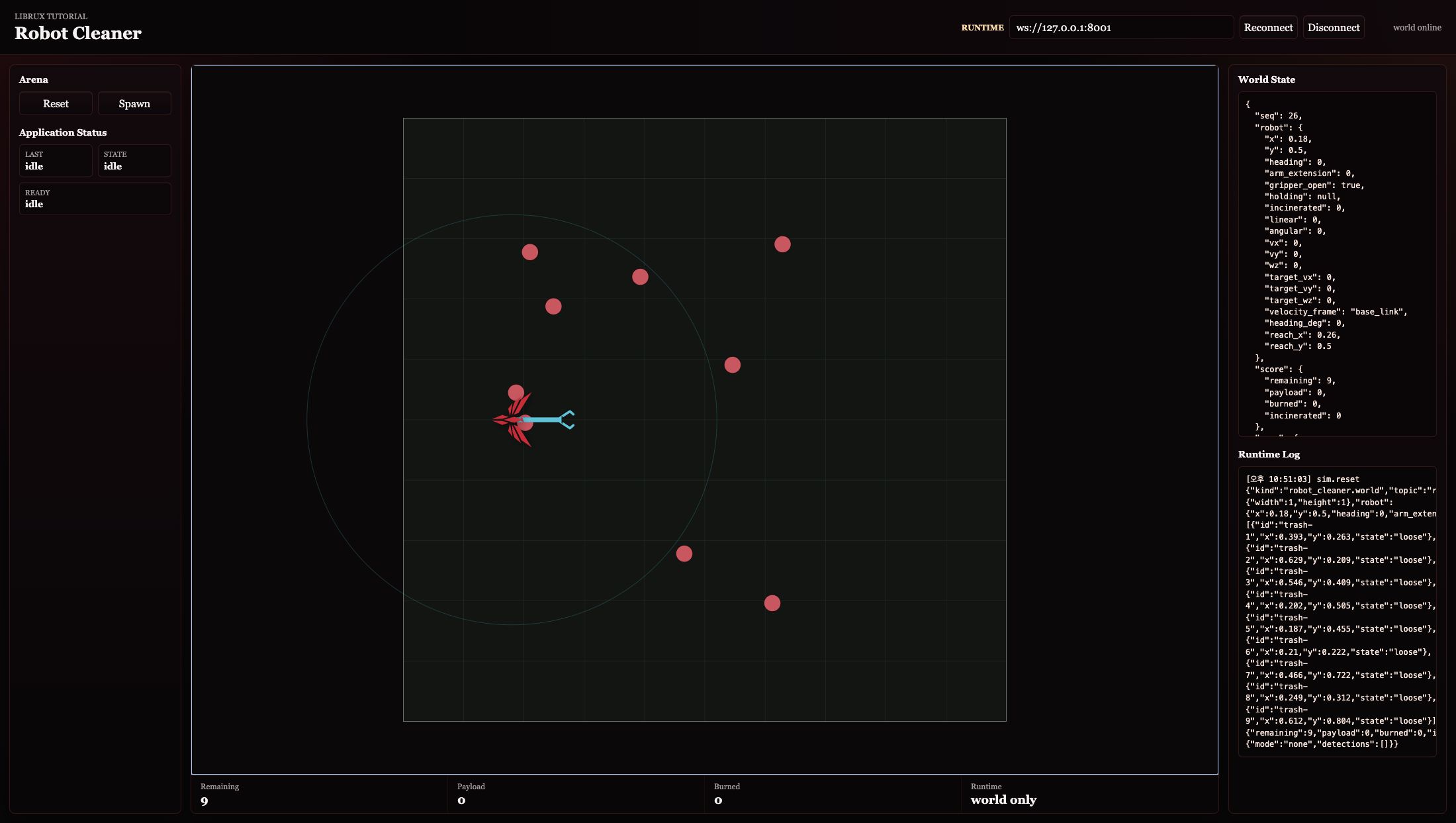
Observe
The page polls the simulator API directly and attempts to attach to the runtime
event stream automatically. At this point, no application is running, so the
Application Status area may remain idle. That is expected.
Use the browser controls under Arena.
| Control | What it proves |
|---|---|
| Reset | the provided simulator owns world reset |
| Spawn | the provided simulator owns trash creation |
| World State | the browser can read robot pose, trash, score, and scan state |
This page is only the simulator and world viewer. Teleop controls belong to the teleop application frontend that appears in the advanced teleop step.
Open These Files
Open the simulator server.
nano tutorials/simulator/arena_server.py
Open the simulator state model.
nano tutorials/simulator/arena.py
Open the browser frontend.
nano tutorials/frontend/app.js
You do not need to edit them in the normal tutorial path. They are provided world infrastructure, similar to a small simulator, vendor SDK, or hardware test environment.
What Changed In The Robot Graph
Nothing yet. The graph has only tutorial support processes.
The next step adds the first Librux subsystem through a managed launch.
Verify
From the runtime host, the simulator health endpoint should respond.
curl http://127.0.0.1:8092/health
The world state endpoint should respond.
curl http://127.0.0.1:8092/state
From your browser machine, use the remote host address if the simulator port is not forwarded.
curl http://<runtime-host>:8092/health
Keep this terminal open. Stop it with Ctrl-C only when you are finished with
the whole tutorial.
Continue to Step 2 - Build Gateway Subsystem.