Step 5 - Run Applications
This step runs the first complete cleaner robot behavior.
same cleaner platform + selected application + deployment = robot behavior
The core tutorial runs Radar first. Radar needs no application-specific browser frontend, so it is the cleanest way to see the completed platform become a running robot. Teleoperation is still part of the tutorial, but it belongs in the advanced flow because it introduces package installation, instance-scoped frontend URLs, and the managed package frontend proxy.
The simulator and world viewer are still provided by run_sim_world.py. This
is the first step that uses librux deploy up to reconcile the platform and an
application together. Earlier steps used librux launch run so each
gateway/component/compound layer could be inspected on its own.
1. Run Radar Autonomy
Start the complete radar robot deployment from the installed root.
cd /opt/librux
librux deploy up tutorials/deployments/radar.deployment.yaml --replace
Expected terminal output shape.
Deployment up: ...
  - app.cleaner.radar [managed] started
  - component.mobile [managed] started
  - component.manipulation [managed] started
  - component.gripper [managed] started
  - component.perception [managed] started
  - compound.cleaner [managed] started
  - gateway.device_gateway [managed] started
If some platform subsystems are already running from earlier steps, deploy up
reuses or replaces them according to the deployment command. If they are not
running, it starts the complete radar robot.
2. Observe The Robot
Open the world viewer with the same host rule from Step 1. For a local browser and runtime, use the following.
http://127.0.0.1:8091/
For a remote runtime host, use the following.
http://<runtime-host>:8091/
The world viewer automatically polls the simulator API and observes runtime app
status when the runtime is reachable. Use Reconnect only after restarting
the runtime or changing the network path. The world viewer does not start or
switch applications. deploy up already did that.
The radar app uses the perception capability as the main target-selection
input. It scans the arena, chooses a trash target only when the target is
inside its configured scan range, drives toward it, collects it, and
incinerates it. If no trash is inside range, the app stops the base and reports
radar.no_target; it does not drive toward out-of-range trash.
During seek, the app refreshes a velocity command while the simulator holds that command for a short TTL. When the target is close enough to collect, the app stops the base before extending the arm, closing the gripper, stowing, and burning.
The world viewer should show the cleaner arena without Teleop controls. It is observing the selected app; it is not choosing or launching the app.
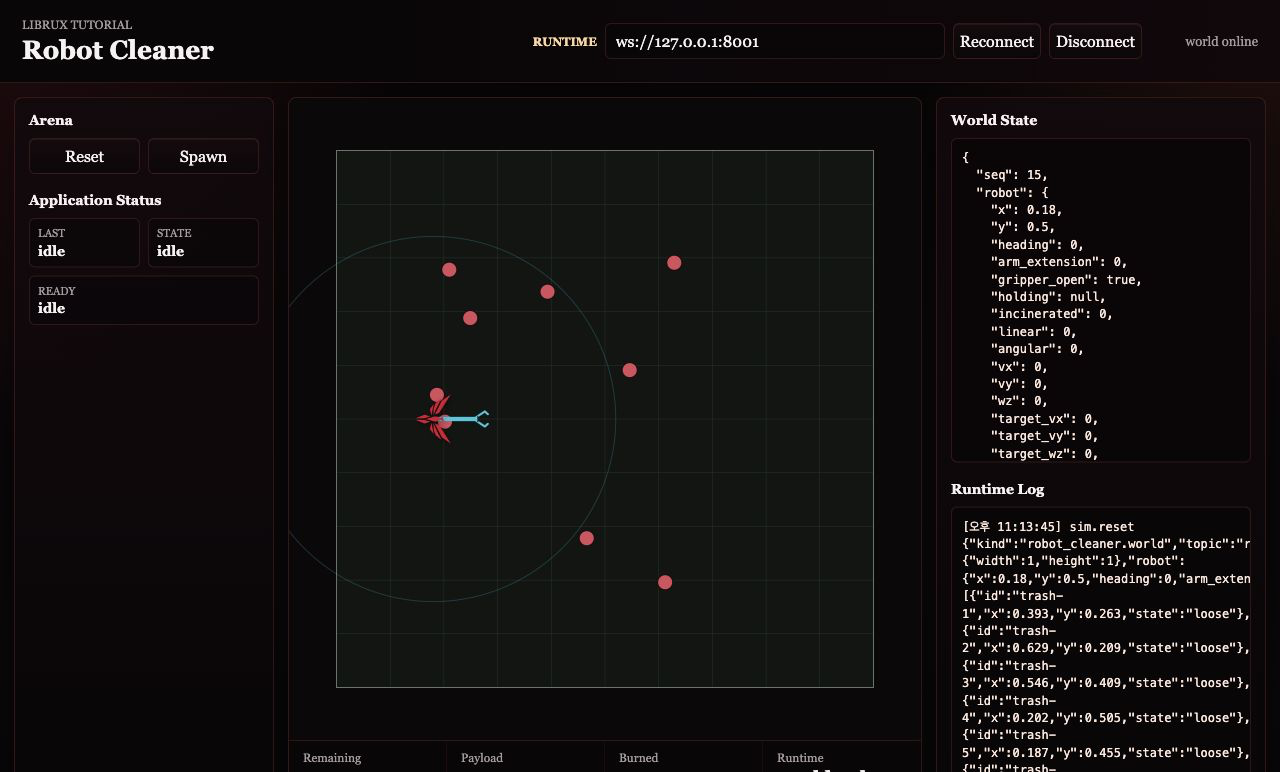
Inspect the running deployment.
librux deploy status tutorials/deployments/radar.deployment.yaml
3. What The Deployment Adds
Open the radar deployment.
nano tutorials/deployments/radar.deployment.yaml
The important fields are these.
| Field | Meaning |
|---|---|
robot |
the cleaner platform manifest used for slot validation |
application |
the selected app-role subsystem manifest |
instances |
package instances that should be running |
bindings |
how app requirements, compound requirements, and component requirements connect |
The app binds to capabilities on compound.cleaner, not directly to the
gateway or vendor-specific component implementation.
app.cleaner.radar
  -> compound.cleaner capabilities
  -> component.mobile / component.manipulation / component.gripper / component.perception
  -> gateway.device_gateway
  -> simulator
That is the point of the application layer. Radar describes robot behavior; it does not need to know whether the gateway is a simulator, a lab gateway, or a product device gateway.
4. Remote Host Reminder
If you did not already start Step 1 in remote mode, restart the world terminal with the tutorial world bound to the host interface.
python3 tutorials/run_sim_world.py --host 0.0.0.0
Then start the radar deployment on that host.
librux deploy up tutorials/deployments/radar.deployment.yaml --replace
Open this world viewer URL.
http://<runtime-host>:8091/
The world viewer has no application selector. To switch robot behavior, stop the active deployment or package instance and start the next application path.
Runtime Graph
What This Proves
- A deployment can bring up a full platform plus a selected application.
- The application is the top-level behavior policy for the robot.
- Applications depend on robot capabilities, not vendor-specific controller names.
- The world viewer is not the robot brain. It is a visualization and simulator control surface.
- The core tutorial can run an application without requiring package installation or a custom browser frontend.
- Teleoperation is an advanced topic because it adds managed package installation, package instance context, and package frontend proxy behavior.
When finished, stop the active deployment and then stop the world terminal.
librux deploy down tutorials/deployments/radar.deployment.yaml
Continue to Advanced Subsystem Packages.